Summary
This article explains how SUNY Schenectady users can create and register a passkey for their Microsoft account using Microsoft Authenticator. As Microsoft moves away from SMS text messages and voice calls for authentication, passkeys provide a more secure, phishing-resistant, and convenient sign-in method by using biometrics (fingerprint or facial recognition), a PIN, or a device screen lock.
Body
Overview
As Microsoft transitions away from SMS text message and voice call authentication, SUNY Schenectady users are encouraged to configure a passkey in Microsoft Authenticator. A passkey provides a more secure and convenient sign-in experience by allowing you to verify your identity using your device's biometrics (fingerprint or facial recognition), PIN, or screen lock instead of receiving a text message or phone call.
Before you begin:
- You must be able to sign in to your SUNY Schenectady Microsoft account.
- The Microsoft Authenticator app must be installed on your smartphone.
- Your mobile device must support biometrics or a device PIN/screen lock.
- You must have an existing MFA method configured to complete the setup process.
Note: If you need assistance accessing your account or configuring Microsoft Authenticator, contact the ITS Service Center before proceeding.
Solution
Step 1
Open a web browser and navigate to:
https://mysignins.microsoft.com/security-info
Sign in using your SUNY Schenectady email address and password.
Step 2
Choose Add a new way to sign in or verify.
Step 3
Select Face, Fingerprint, PIN, or Security Key and follow the instructions on your device.
Step 4
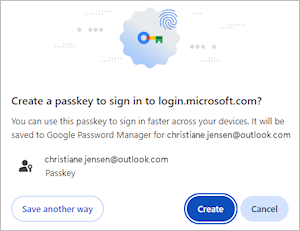
Select Continue or Create to store the passkey in the suggested location or select Change or Save another way to see alternative save location options.

Step 5
Complete the passkey save process at the chosen location. The process varies based on your selection and might require you to provide an unlock gesture, such as facial recognition, fingerprint, or PIN.
Additional Information
Benefits of a Passkey
- More secure than SMS or phone-call MFA
- Faster sign-in experience
- Resistant to phishing attacks
- Recommended by Microsoft
Alternate Save Locations
- Password Manager: You can save a passkey to Microsoft Password Manager or another synced credential manager (such as Google Password Manager, Apple iCloud Keychain or others).
- iPhone, iPad or Android device: The passkey is saved to a phone or tablet.
- Note: This option requires you to scan a QR code using your mobile device's camera (tap Use passkey when shown) or the QR scan button in Microsoft Authenticator (or similar) installed on your phone or tablet. Saving passkeys to a phone or tablet may also require Bluetooth pairing for verification.
- Security key: The passkey is saved to a physical security key.
- Windows device / Windows Hello: The passkey is saved locally to your Windows device using Windows Hello.
- Note: This option may not be shown if you have already saved another passkey to a synced credential manager such as Microsoft Password Manager.
Need additional information or assistance? Contact the ITS Service Desk.